LCSH Cataloging Assistant

AI-Powered Library of Congress Subject Headings Generation & Validation

Kwok-leong Tang

Harvard University

https://assistant.cataloguer.name

How It Started

The origin of the LCSH Cataloging Assistant

  • At the 2024 CEAL Annual Meeting, LCSH recommendation was highlighted as a highly desired GenAI tool.
  • I built a ChatGPT GPT as a proof of concept — using the LOC Linked Data Service to validate AI-generated headings.
  • But catalogers hit barriers: no access to public GPTs via ChatGPT EDU, geographic blockage, and budget cuts.
The response: Build it free & open source. No subscription required. No geographic restrictions. Works with free AI tiers.

The response

Free & Open Source

No subscription. No restrictions.
Works with free AI tiers.

The Journey

From proof of concept to full web application

2024

Custom GPT

Proof of concept with LOC Linked Data validation

2025

Chrome Extension

Free, Gemini-powered browser tool for catalogers

2026

Web App

Full PWA with multi-provider AI & MARC generation

26%

LLM accuracy on LCSH prediction

(Library of Congress ECD experiments)

Best ML model scored only 35%. Generic AI hallucinates headings that don't exist.

The Three-Phase AI Pipeline

How the Cataloging Assistant validates AI suggestions

AI

Suggest

AI analyzes bibliographic data and generates 3–6 LCSH candidates using structured output

LOC

Validate

Each candidate validated against LOC suggest2 APIs with similarity scoring

AI

Select

AI picks best LOC match per term + bonus terms. 0–100 confidence score.

Key insight: AI alone scores 26%. By adding LOC validation in the loop, we ensure every recommended heading actually exists in the authority file.

What is the Cataloging Assistant?

An AI-powered tool for librarians and catalogers

  • AI-Powered LCSH Generation — Uses AI models to analyze bibliographic information and suggest appropriate Library of Congress Subject Headings
  • LOC Validation — Validates every suggestion against the Library of Congress authorities database (LCSH & LCNAF)
  • MARC Record Generation — Automatically generates properly formatted MARC records (650/600/610/651 tags)
  • Privacy-First Design — All data stored locally in your browser. Zero-knowledge architecture
  • Progressive Web App — Install on your device and use like a native app
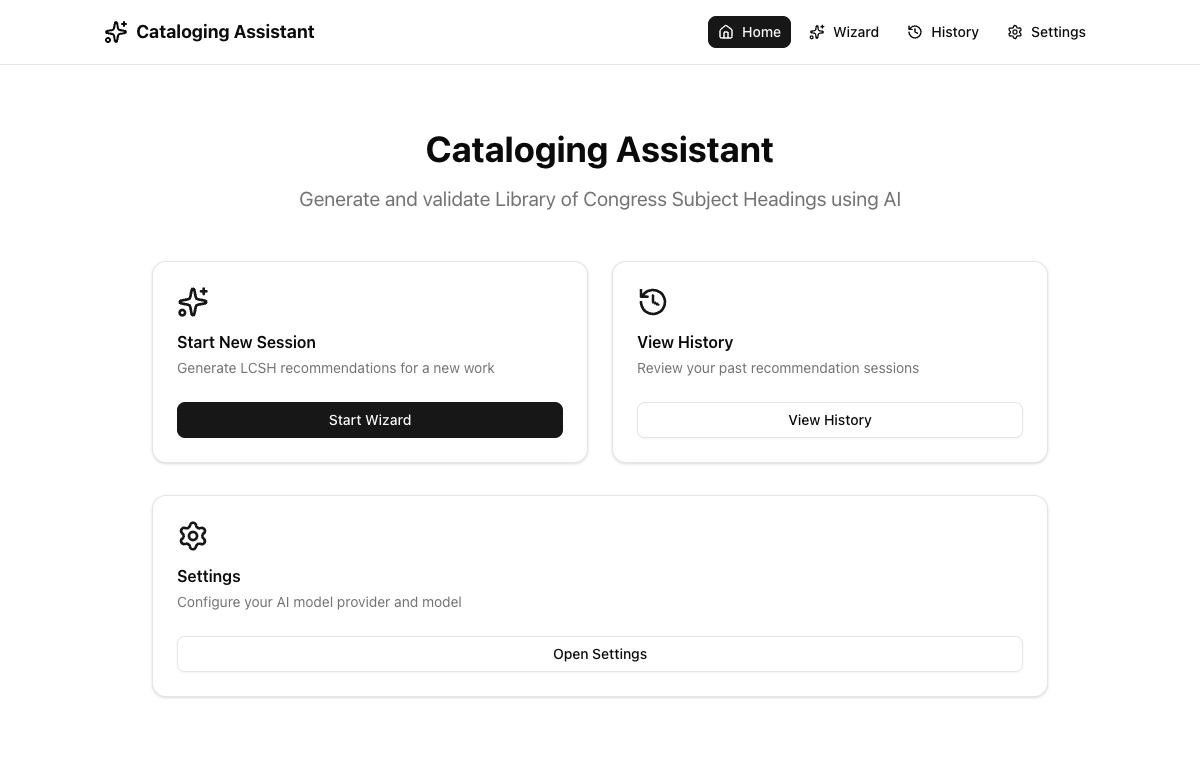
Home page

App Navigation

Four main sections accessible from the top navigation bar

Home

Landing page with quick-access cards to start a new session, view history, or open settings.

Wizard

The core 3-step workflow: enter bibliographic data, review AI suggestions, and export MARC records.

History

Review all past cataloging sessions. View details, export to CSV, or delete old sessions.

Settings

Configure your AI model provider, manage API keys, and customize the system prompt.

Tip: The active page is highlighted with a dark background in the navigation bar. You can navigate between pages at any time without losing your wizard progress.
Home page

Settings: Select a Provider

First step — choose your AI provider (required before using the Wizard)

Available Providers

  • OpenAI — GPT-4o, GPT-4, GPT-3.5
  • Google Gemini — Gemini 2.5 Flash/Pro, 2.0 Flash
  • DeepSeek — DeepSeek Chat, Reasoner
  • Qwen — Qwen models (Alibaba)
  • Z.ai, Kimi, Minimax — Additional providers
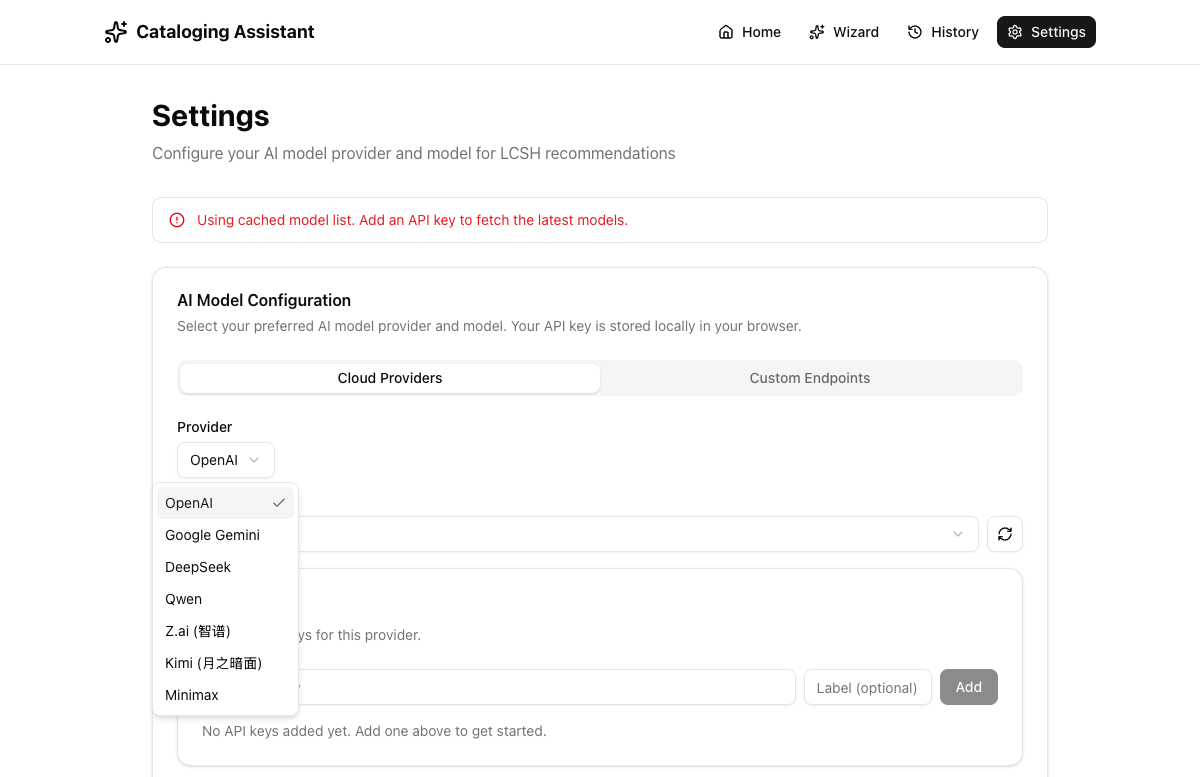
How to: Click the "Provider" dropdown, then select your preferred provider from the list.
Provider dropdown

Settings: Add Your API Key

Enter and manage API keys securely in your browser

Adding a Key

  • Enter your API key in the "Enter API key" field
  • Optionally add a label (e.g., "Work Key", "Personal Key")
  • Click "Add" to save the key
  • Keys are masked in the UI for security (XXXX...YYYY)
  • The first key added is automatically set as Default
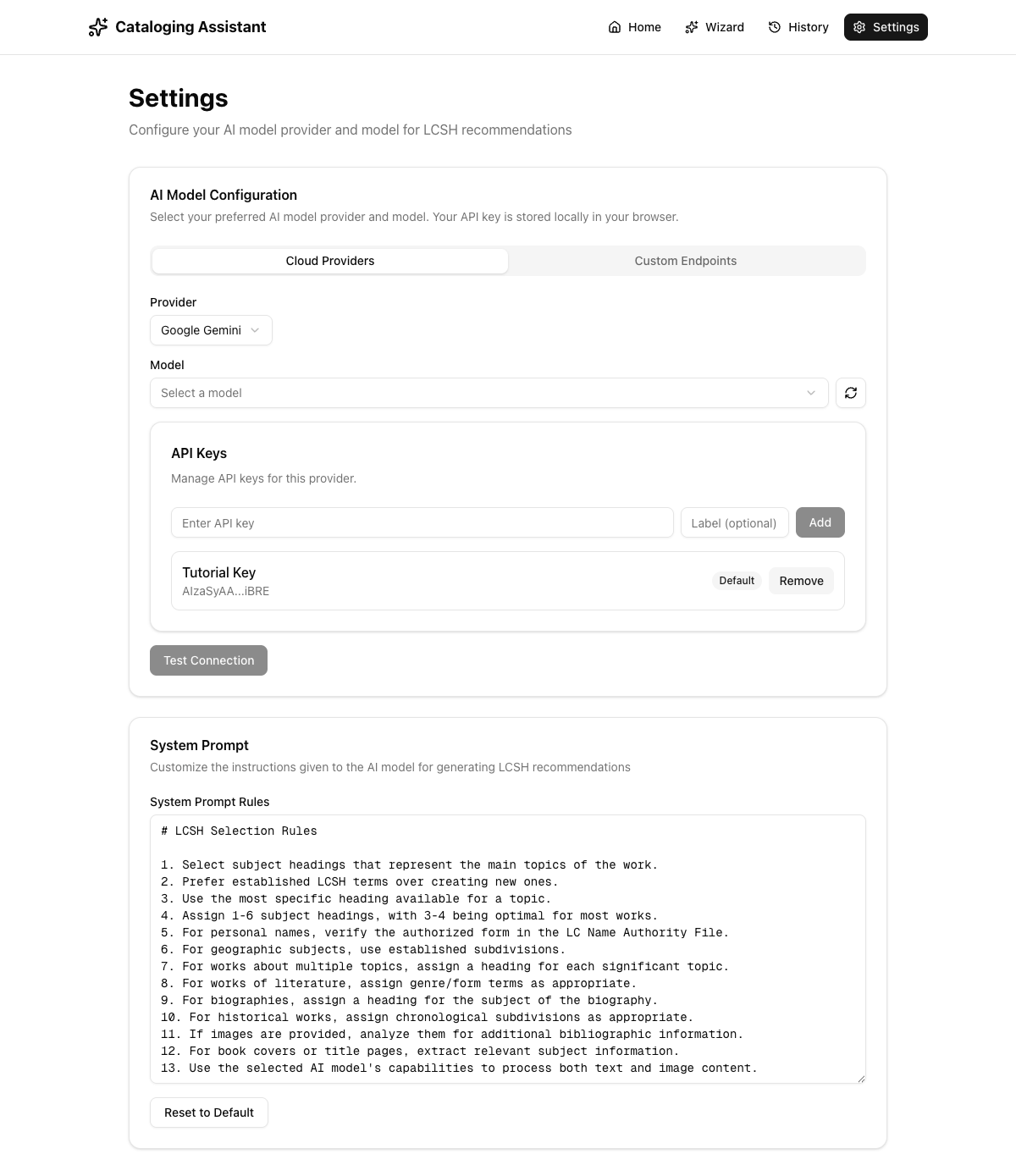
Security: Keys are stored only in your browser's local storage. They never leave your device except when making requests to the AI provider.
API key added

The 3-Step Wizard Workflow

The core cataloging workflow from input to MARC output

1

Bibliographic Information

Enter title, author, abstract, table of contents, notes. Upload images.

2

Validated Suggestions

Review AI suggestions validated against LOC with similarity scores.

3

Final Recommendations

MARC records, copy to clipboard, export CSV, save to history.
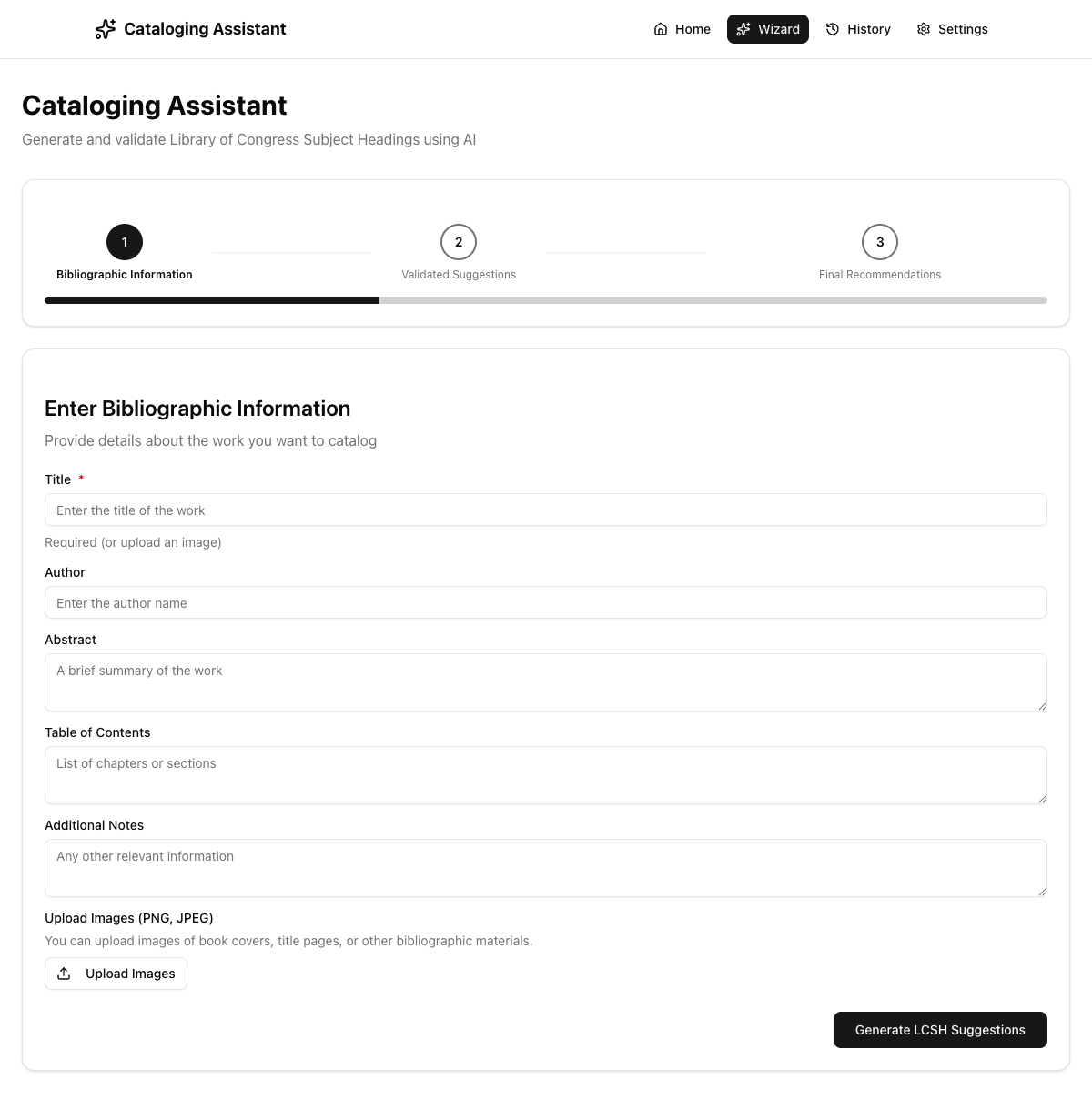
Wizard overview
A visual progress bar tracks your progress. You can navigate back to previous steps using the "Back" button at any time.

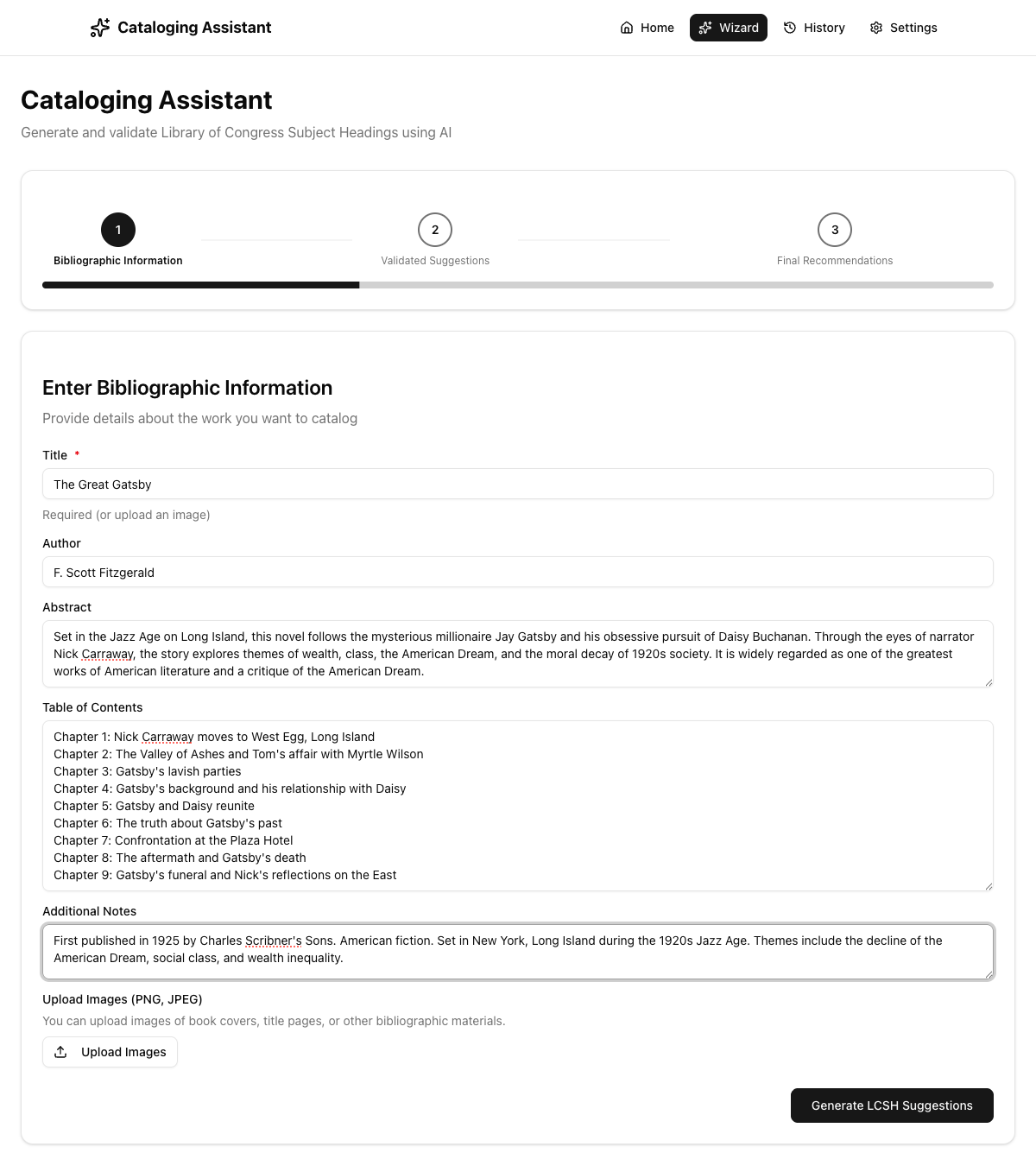
Step 1: Enter Bibliographic Information

Example: Cataloging "The Great Gatsby" by F. Scott Fitzgerald

Input Fields

FieldRequired?
TitleYes (or upload image)
AuthorNo
AbstractNo (recommended)
Table of ContentsNo
Additional NotesNo
ImagesNo (PNG/JPEG)
Tip: The more detail you provide (especially abstract & table of contents), the better the AI suggestions.
Image Upload Note: Image analysis only works with AI models that have vision capabilities (e.g., GPT-4o, Gemini 2.5 Flash/Pro). Text-only models will ignore uploaded images.
Filled form

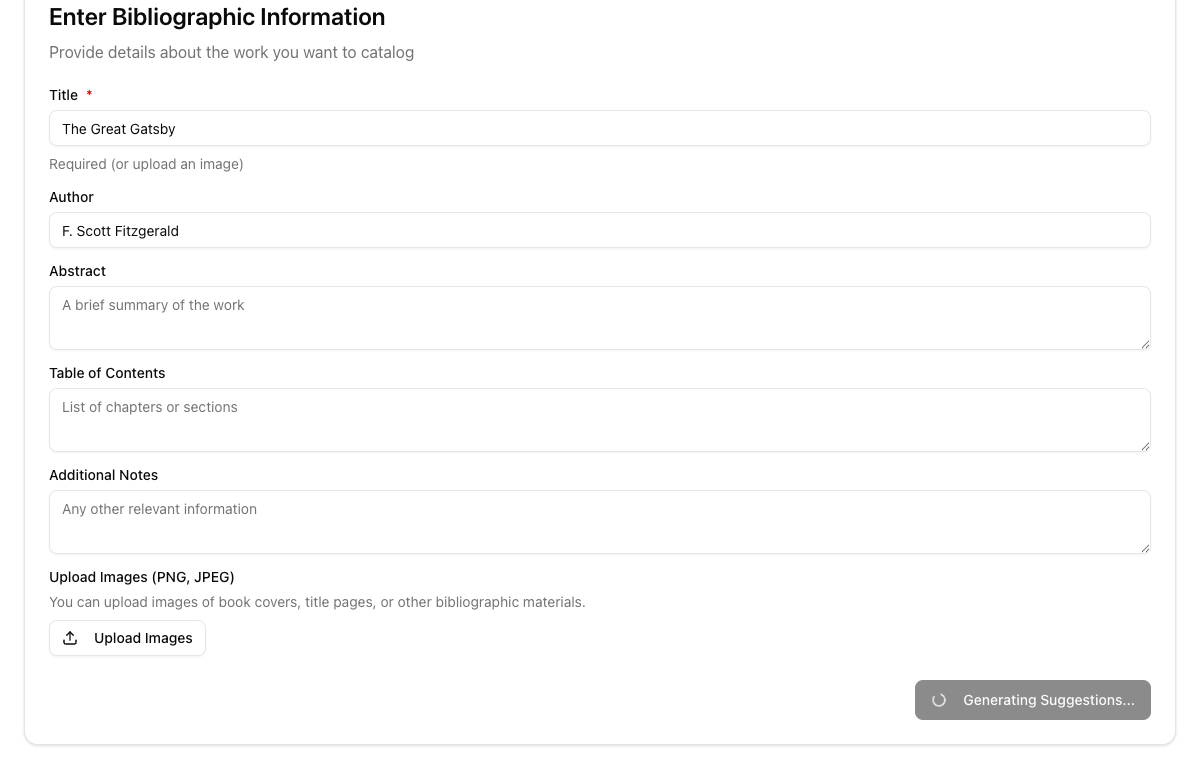
Step 1: Generating Suggestions

Click "Generate LCSH Suggestions" and wait for the AI to process

What Happens Behind the Scenes

1
Your bibliographic data is sent to the configured AI model
2
AI analyzes the content and generates subject heading suggestions
3
Each suggestion is validated against the LOC authorities API (LCSH & LCNAF)
4
Similarity scores are calculated using Levenshtein distance
5
Results auto-advance to Step 2
Processing typically takes 10-30 seconds depending on the AI provider and input complexity.
Loading spinner

Step 2: Validated Suggestions

AI suggestions validated against the Library of Congress database

Results for "The Great Gatsby"

  • 96% Excellent Match — 8 of 8 terms validated
  • Subject Analysis — AI-generated summary of the work's themes
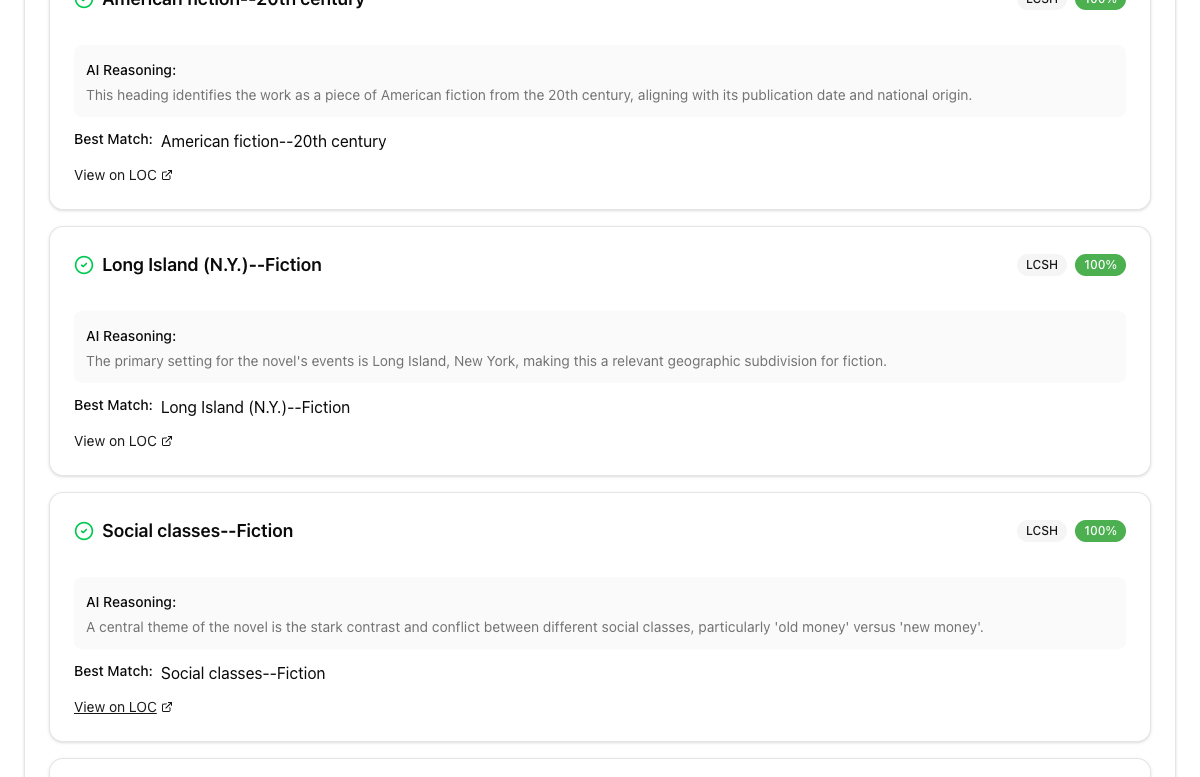
  • Each term shows: heading name, LCSH source badge, and similarity %
  • AI Reasoning explains why each heading was chosen
  • "View on LOC" links directly to id.loc.gov authority records
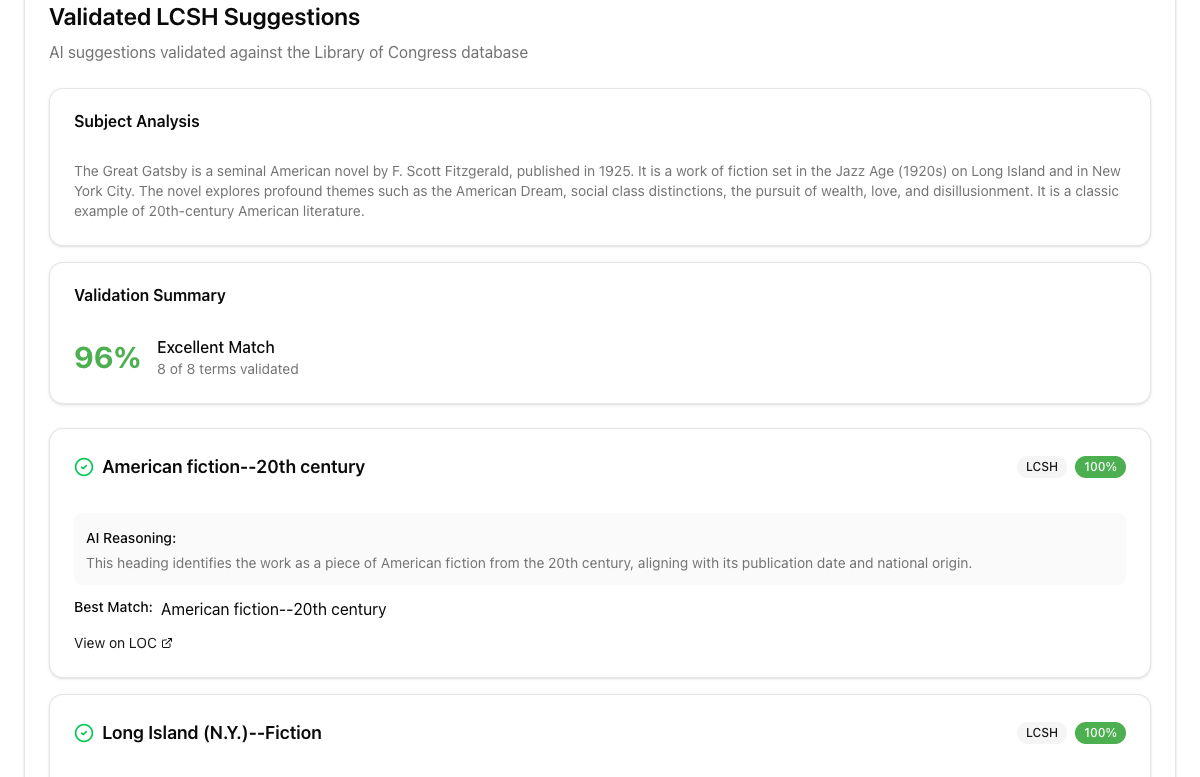
Green checkmarks indicate exact LOC matches. The AI Additional badge marks terms the AI suggested beyond the input.
Step 2 validation results

Step 2: Individual Term Details

Each validated term includes full context and reasoning

Term details

Terms with 100% matches and AI reasoning
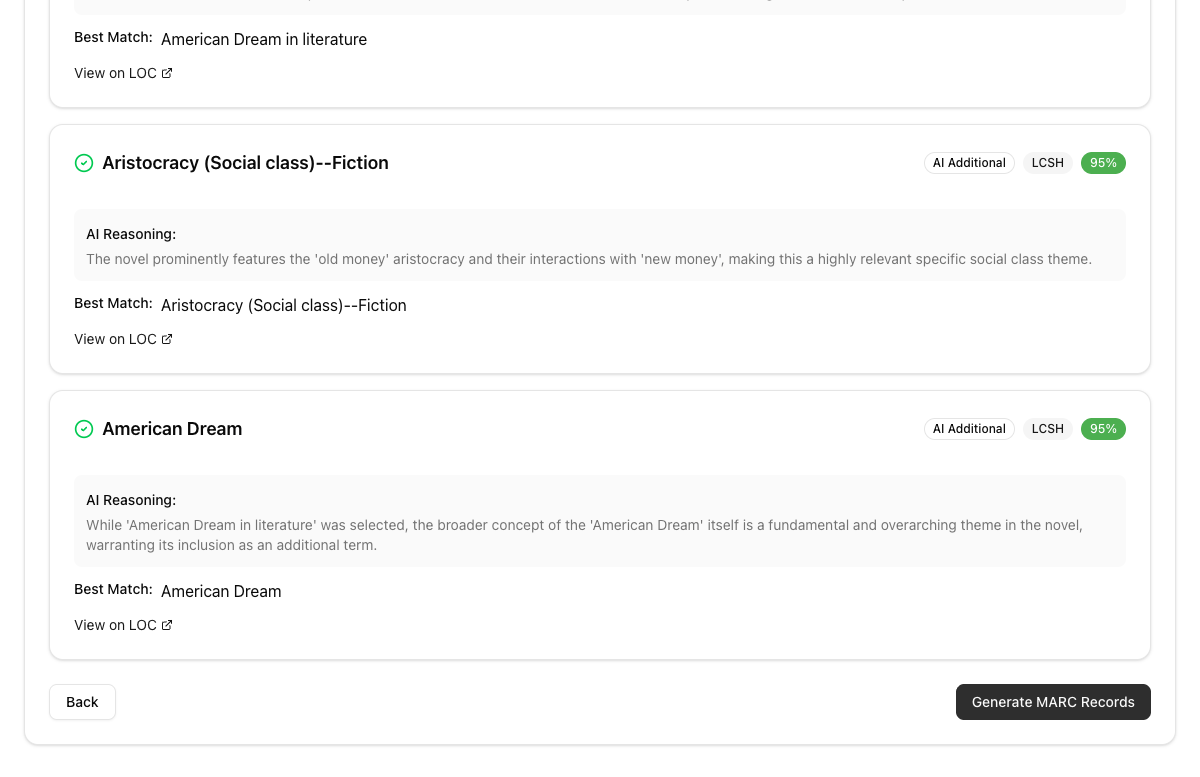
AI Additional terms

"AI Additional" terms and "Generate MARC Records" button

Click "Generate MARC Records" at the bottom to proceed to Step 3 and create MARC records for all validated terms.

Step 3: Final Recommendations

MARC records, subject analysis, and validation score

  • Subject Analysis — AI expert analysis of the work's themes
  • Overall Validation Score — 96% Excellent Match
  • Each term shows its MARC record with correct tag formatting
  • MARC tags: 650 for LCSH subjects, 600/610 for LCNAF names
  • Individual "Copy" button for each MARC record
Example MARC: 650 _0 $a American fiction $y 20th century
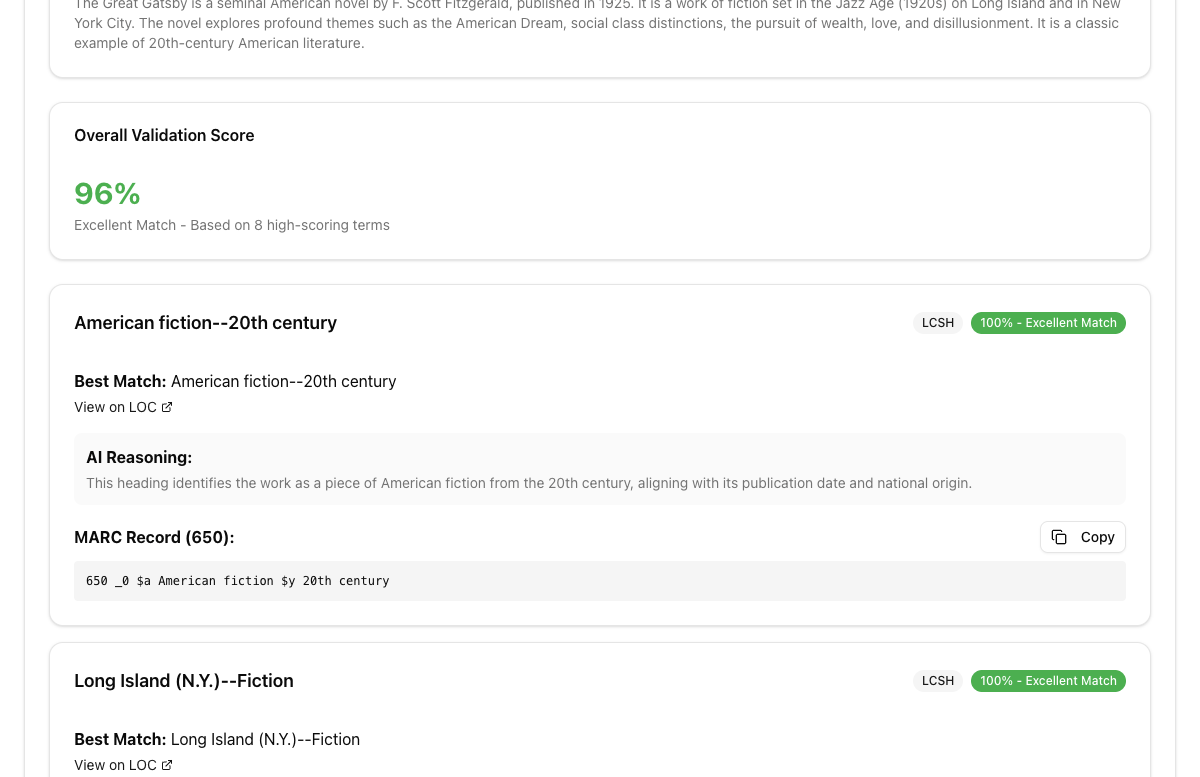
MARC records

Step 3: Export Options

Multiple ways to export your results

Copy All MARC

Copy all MARC records to your clipboard at once for pasting into your ILS.

Export CSV

Download a CSV file with all terms, matches, sources, reasoning, and MARC records.

Save & View History

Persist the entire session for future reference, review, and re-export.

Individual Copy

Copy a single MARC record with the "Copy" button next to each term.
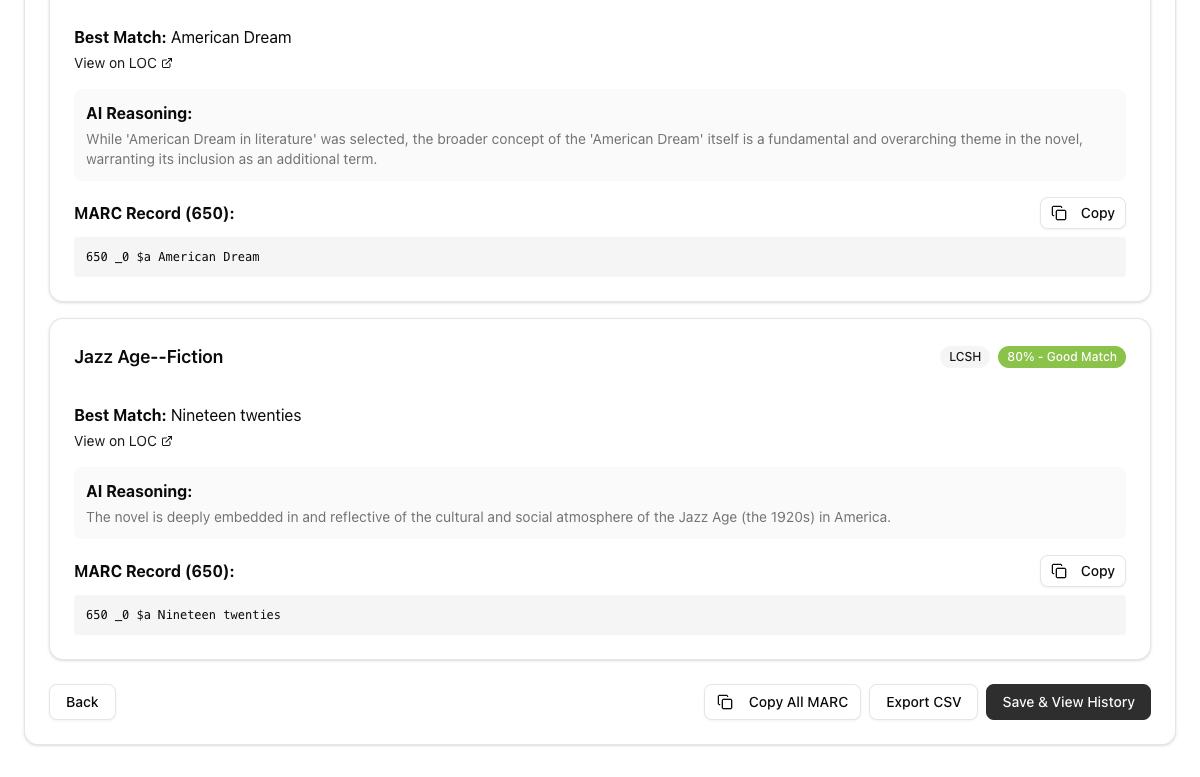
The "Back" button lets you return to Step 2 to review suggestions before exporting.
Export buttons

Conversation History

Review, export, and manage your past cataloging sessions

History Table

  • View all past sessions with date, title, author, and term count
  • Click the eye icon to view full session details
  • Click the download icon to export a session as CSV
  • Click the trash icon to delete (with confirmation)

Bulk Actions

  • "Export All" — Download all sessions as a single CSV
  • "Clear All" — Delete entire history (with confirmation)
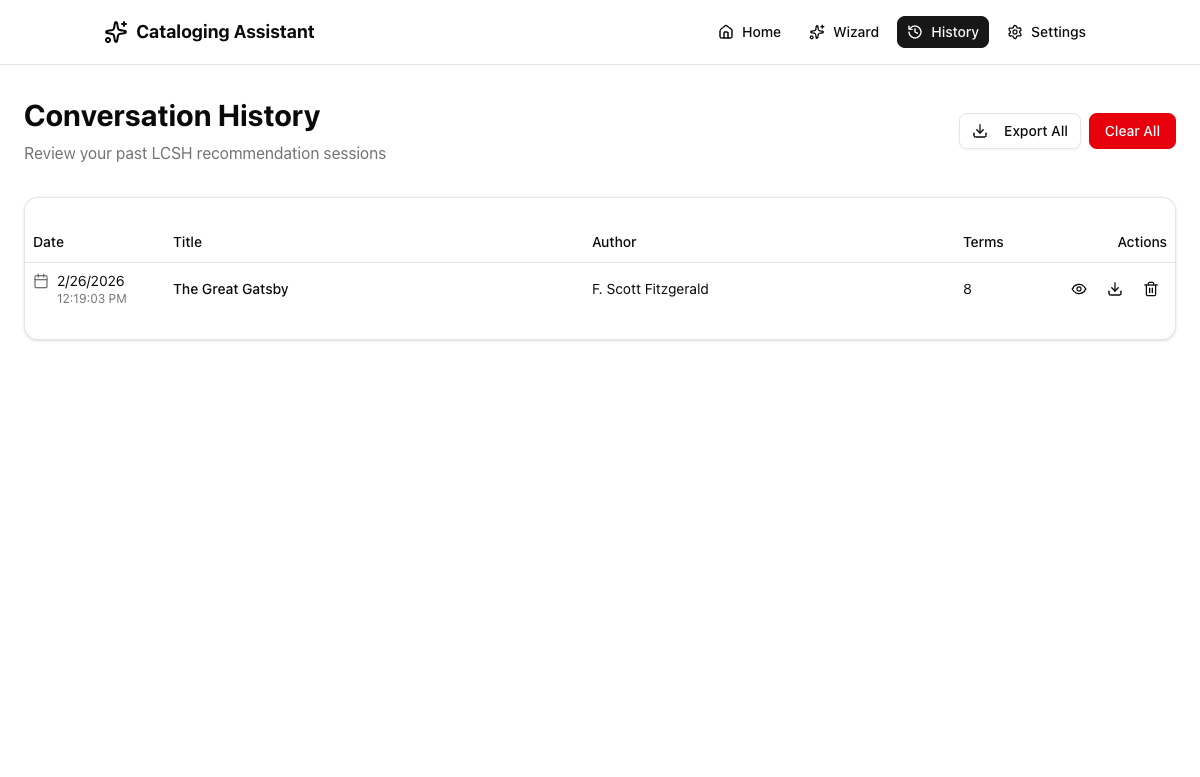
History with data

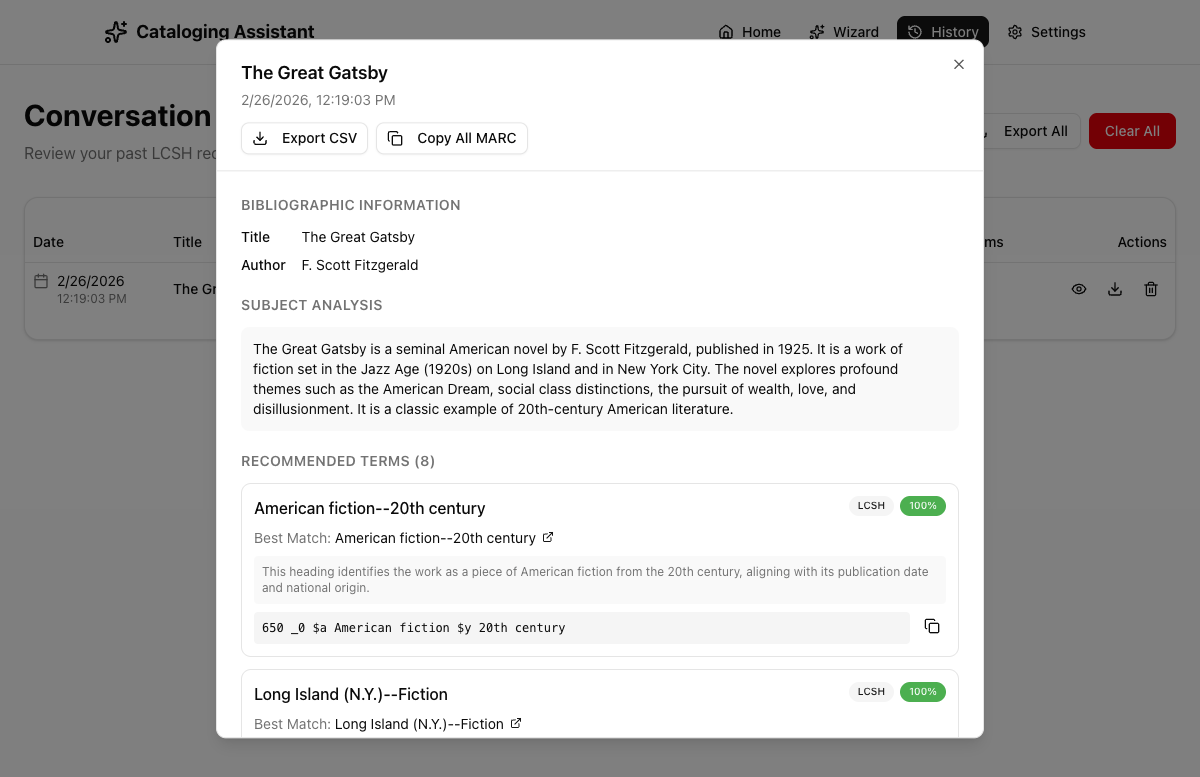
History: Session Detail View

Click the eye icon to open a detailed view of any past session

Detail Dialog Shows

  • Title & timestamp of the session
  • "Export CSV" and "Copy All MARC" buttons at the top
  • Bibliographic Information — title, author, and all input data
  • Subject Analysis — AI-generated thematic analysis
  • Recommended Terms — each with source badge, similarity score, LOC link, AI reasoning, and MARC record
  • Individual copy buttons for each MARC record
Tip: Export important sessions to CSV regularly as a backup. Browser data clearing will erase local history.
History detail dialog

Start Cataloging!

Visit the Cataloging Assistant and try it yourself

https://assistant.cataloguer.name


Questions? Feedback? The app is under active development.
Your input helps make it better for the cataloging community.

Press arrow keys to navigate